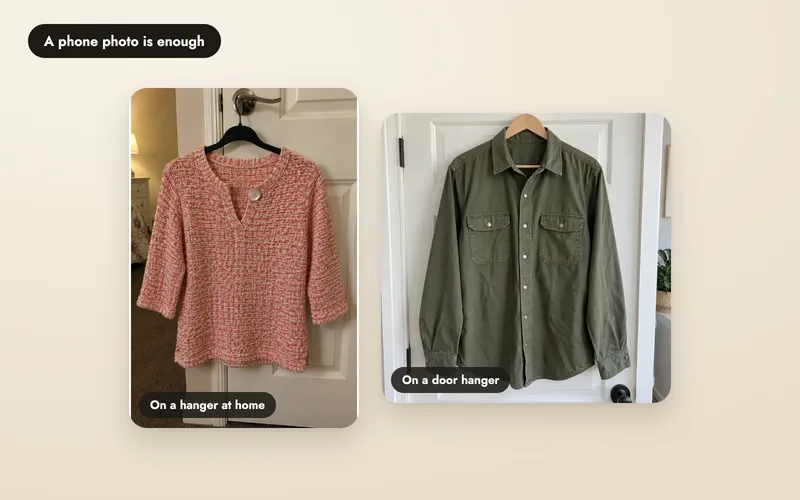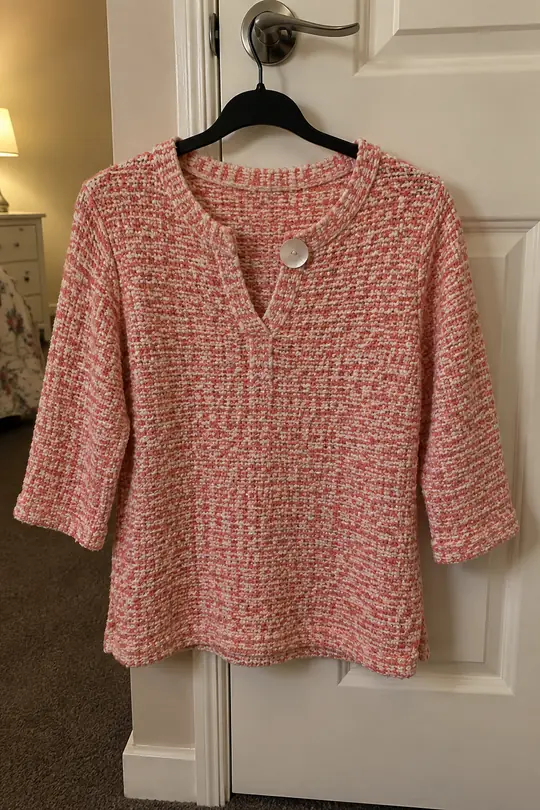
You don't need a studio, a mannequin or a photographer. The top in this guide was photographed on a phone, hanging on a bedroom door, and that single photo is all Aaina needs. Daylight from a window and a tidy background are plenty.
On Home you choose what to make: On a model, Ghost mannequin, Flat-lay or Detail views for product photos, and Product video, Try on me or Creative photo for reels and posts. You can also drop a product photo straight onto Home, or press New shoot in the sidebar. This guide follows a photo on a model, which has five steps shown at the top: Product, Model, Poses, Scene and Review. Nothing is charged until you confirm on the last step, and your choices are kept as a draft if you leave and come back.
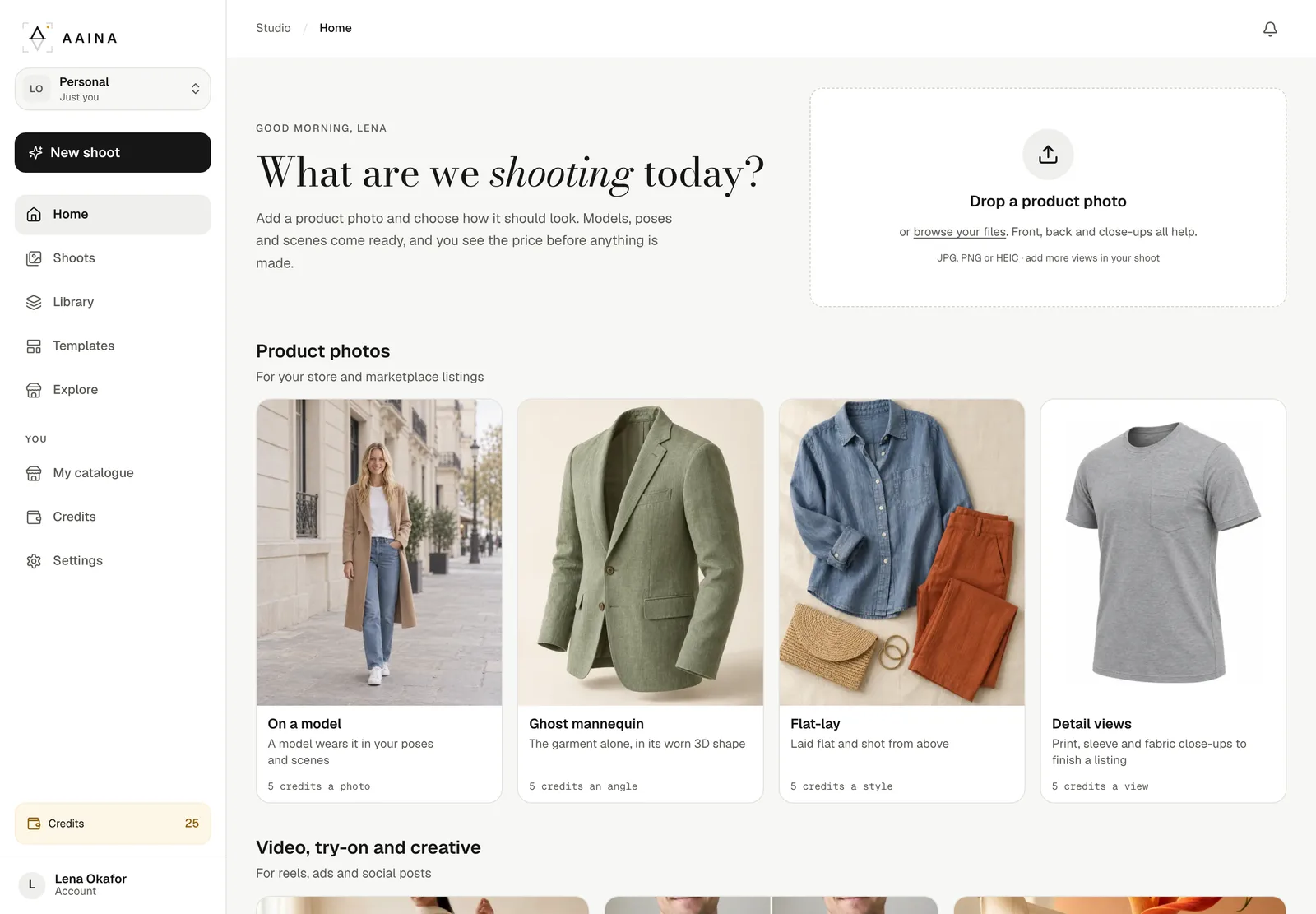
Some screenshots further down show an earlier version of the app. The screens look a little different now, but the steps and buttons work the same way.
Add your product
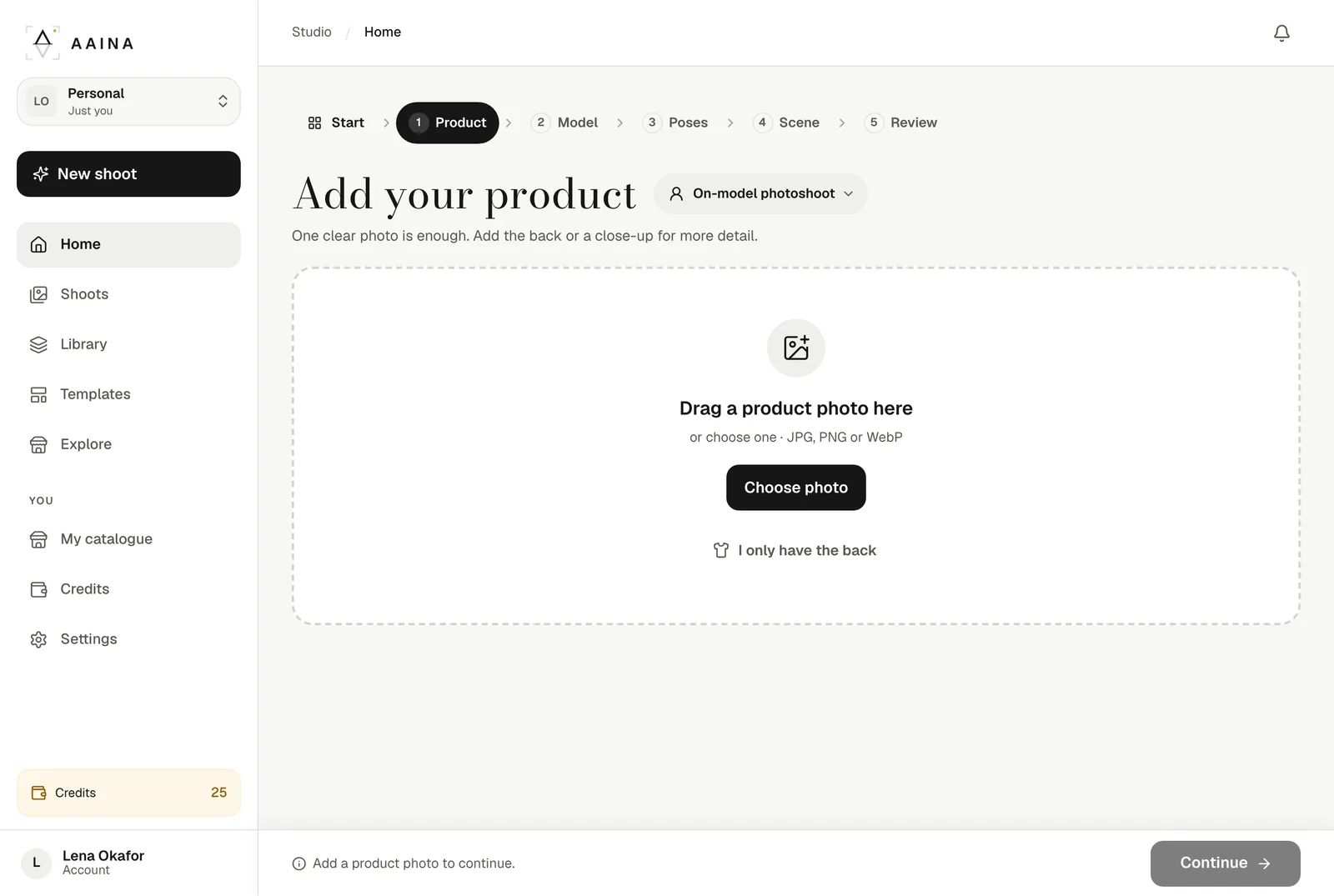
Drag a product photo into the box or press Choose photo. JPG, PNG and WebP work. If you have used the product before, pick it from your products instead.
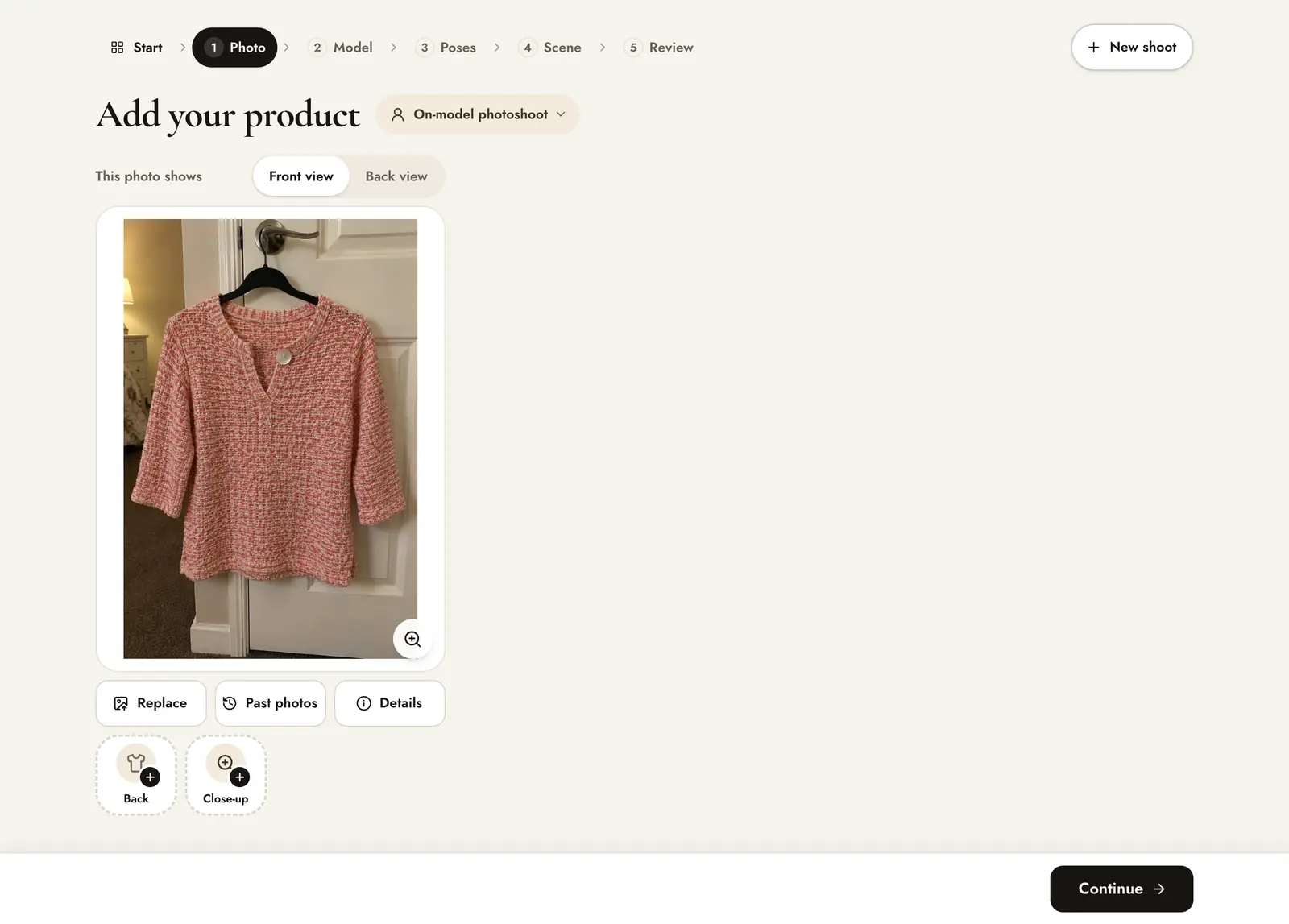
- Mark the photo as Front view or Back view.
- Aaina reads the photo, hanger and all, and suggests the product type, colour and details, here a coral knit top. Open Details to check them.
- Add a back or close-up photo if you have one. These are optional and free.
- Past photos reuses a product you uploaded before.
Choose a model
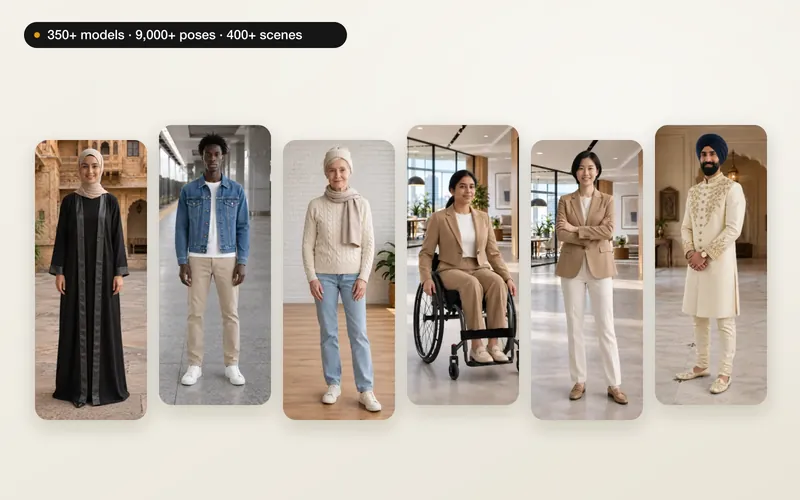
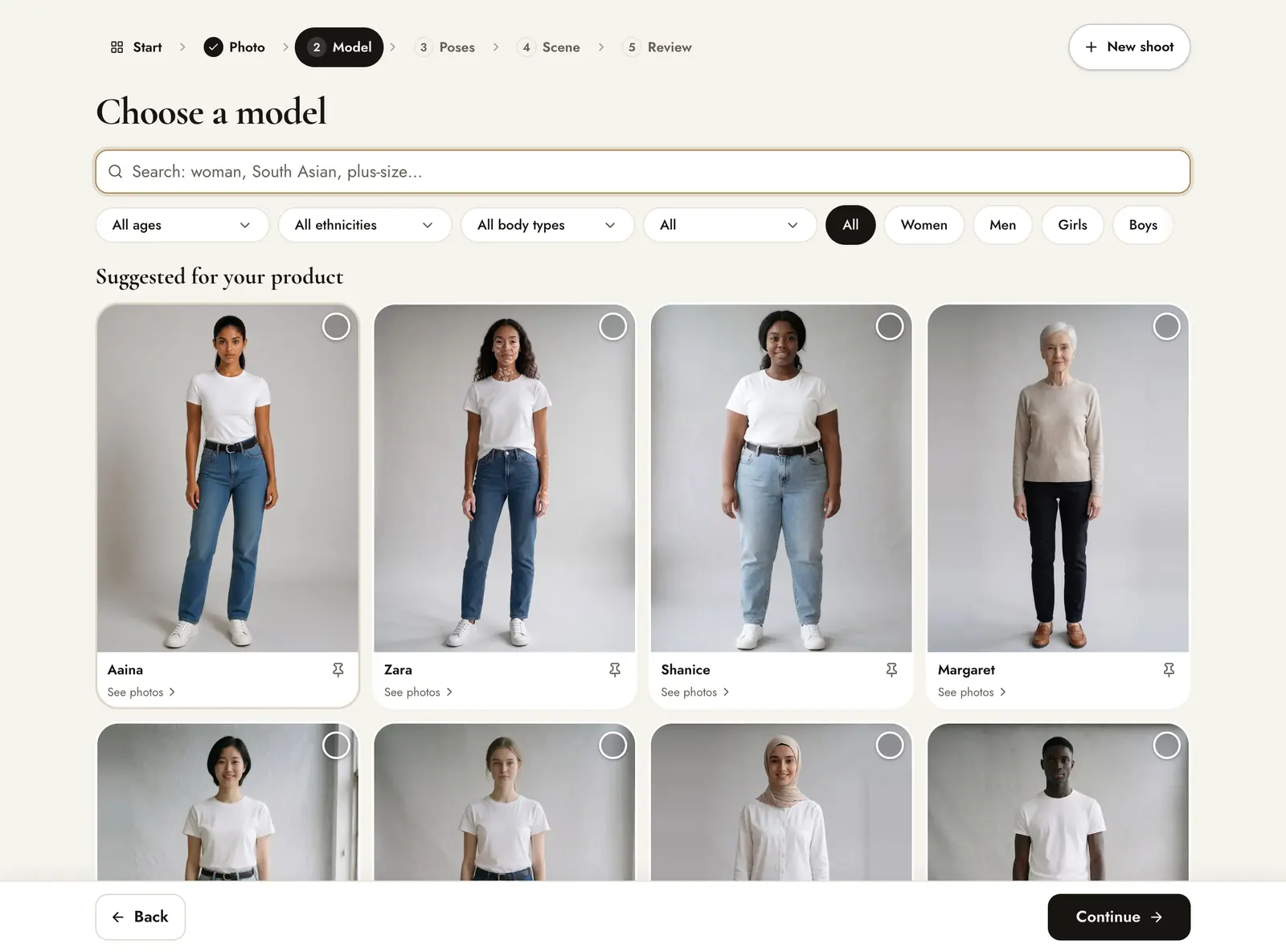
Pick the model who will wear your product and press Continue. We chose Chloe. There are 350+ models, from babies to adults in their 80s, across skin tones and body types, with modest wear, maternity and adaptive collections. Models suited to your product come first under Suggested for your product, and you can filter by gender, age, ethnicity, body type or collection. The price is the same for every model.
Pick poses
Each pose you pick becomes one image. Our first studio models have pose sets of their own, every model can use poses shared by models like them, and poses suggested for your product come first. Tap a card to add it; the bar at the bottom shows the poses you picked and counts them.
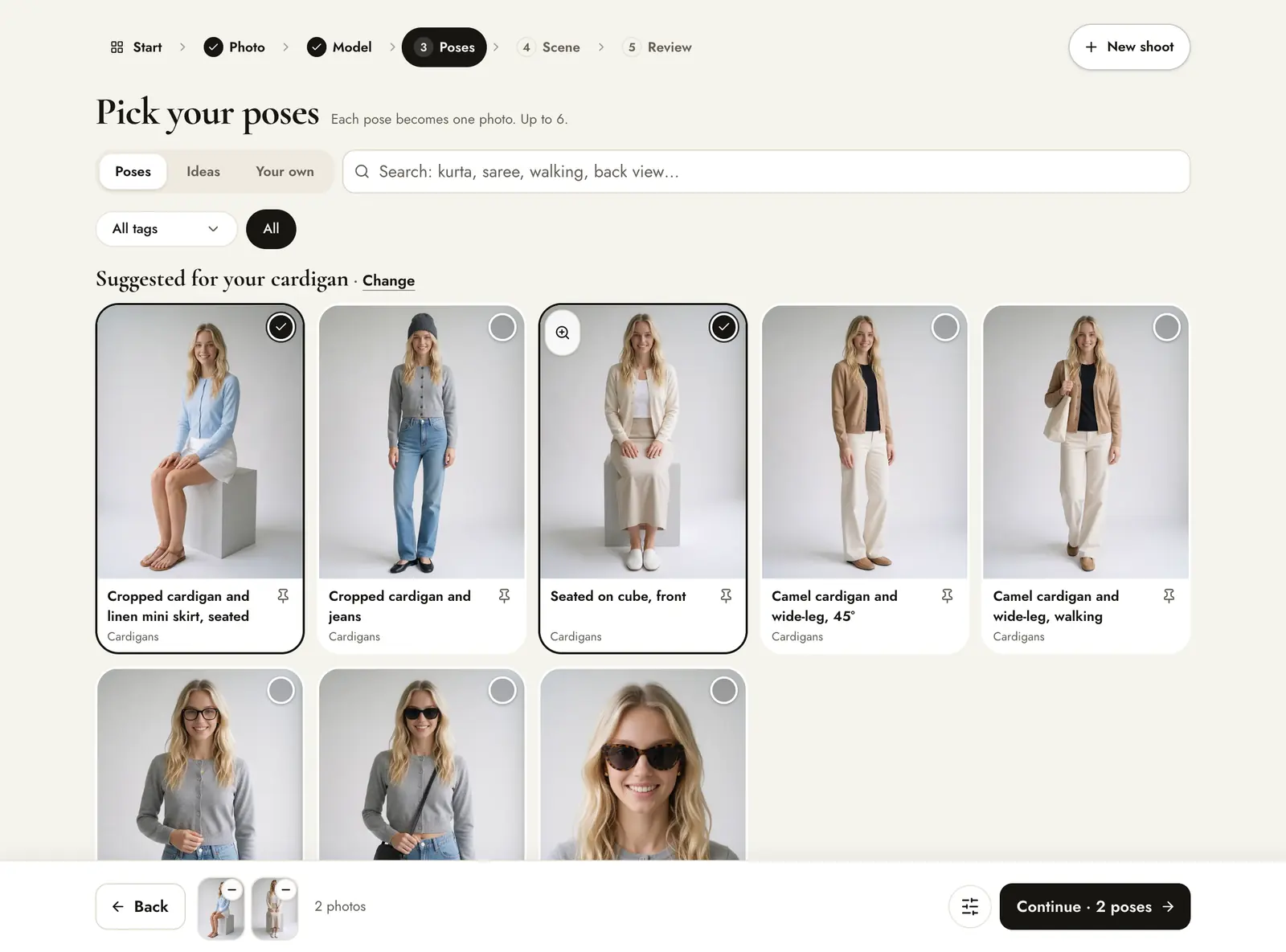
- Poses is the model's own set. Ideas are written suggestions for your product. Your own is where you describe or make a pose.
- Search by product or pose, for example “walking” or “back view”. Change next to the suggestions corrects the product type.
- The bar at the bottom shows your picks and the number of images this shoot will make.
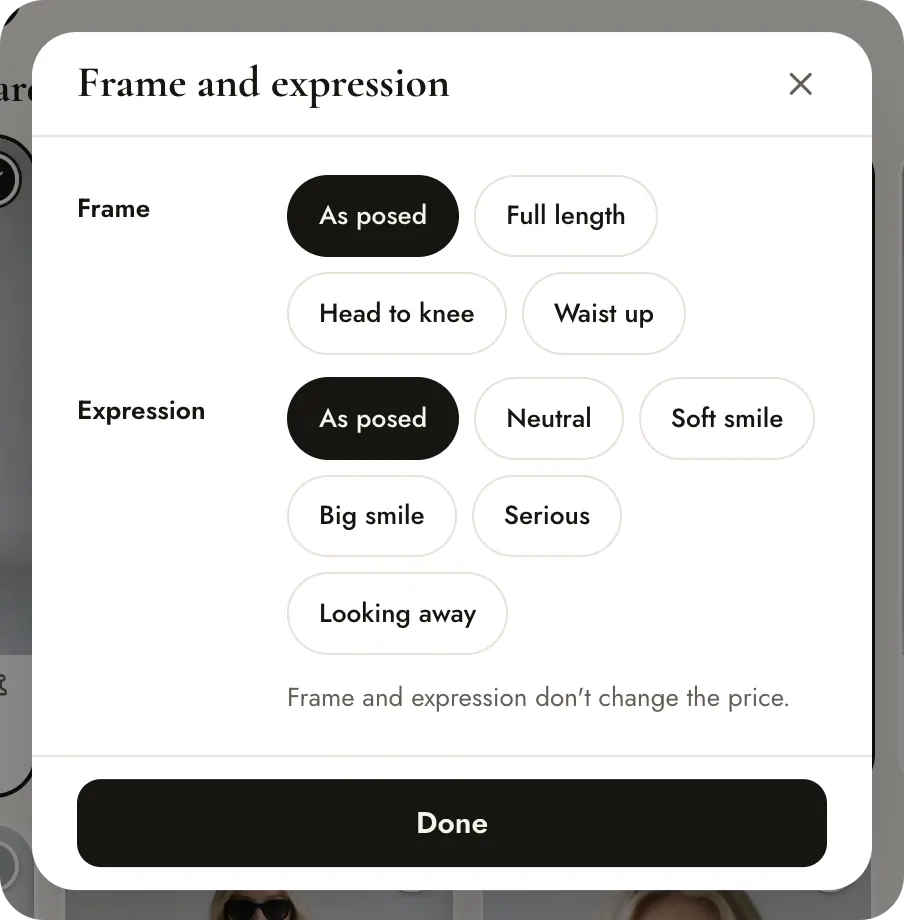
Choose poses that show what makes the product sell: a walking pose for a flowing kurta, a close pose for earrings. You can pick up to 6 per shoot, and show any pose as full length, head to knee, waist up or close-up, with a chosen expression, at no extra cost. More in choosing poses and scenes.
Pick a scene
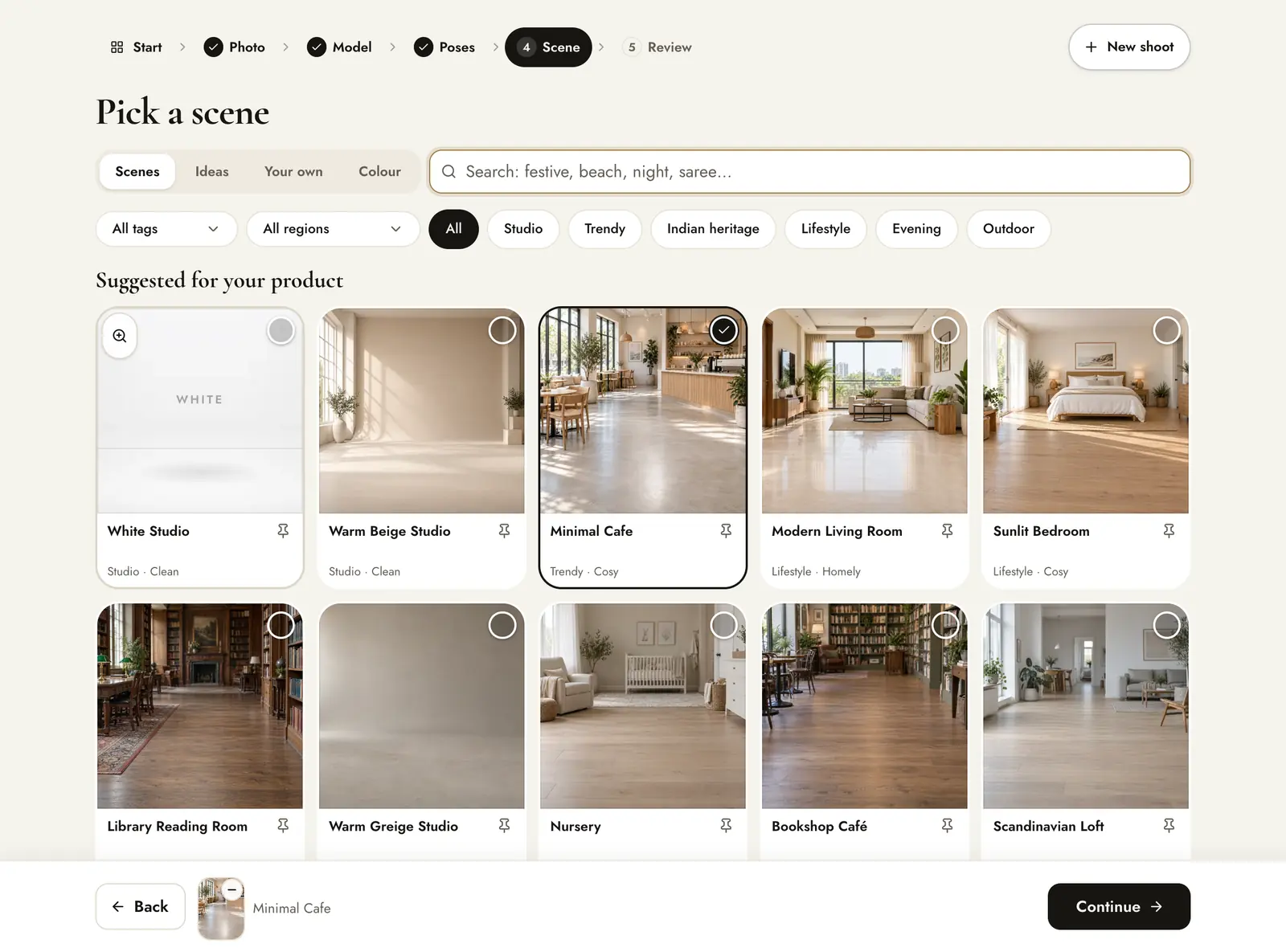
Choose one scene for the shoot. Use the shelves (Studio, Trendy, Indian heritage, Lifestyle, Evening, Outdoor) or search, then press Review. There are 400+ scenes, and you can create as many of your own as you like. We picked Minimal Cafe, a bright, simple room that suits a casual knit.
Review and create
Check the product, model, scene and poses. The cost is shown before you create: here, two poses at 5 credits each, 10 credits in all, which gives you 2 photos.
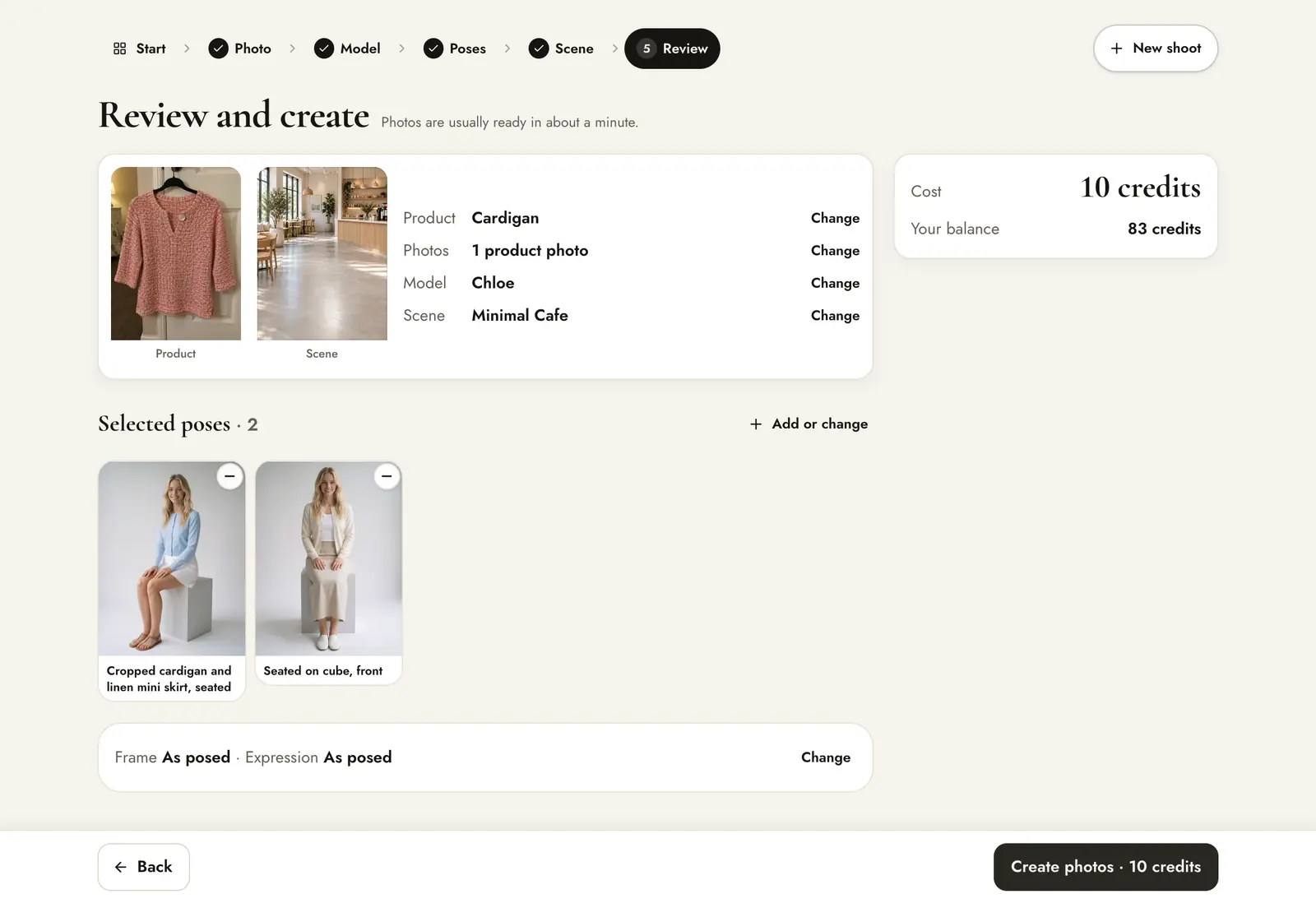
- The cost and your balance are shown together, and the frame and expression you chose are listed.
- A pose described in words appears as a text card. It adds no extra cost.
- The create button shows the price, here 10 credits, and starts the shoot. This is the only step that uses credits.
5 credits per photo. If an image fails, its credits come back automatically.
Your finished shoot
The shoot opens in Shoots. Our test shoots were ready within a few minutes, and you can leave the page while they are made. At the top are Save all, Write listing, Share for approval, Ghost mannequin and Flat-lay. Under each photo you can like or dislike it, download it, and use Colours, Fix, Video and Make again.
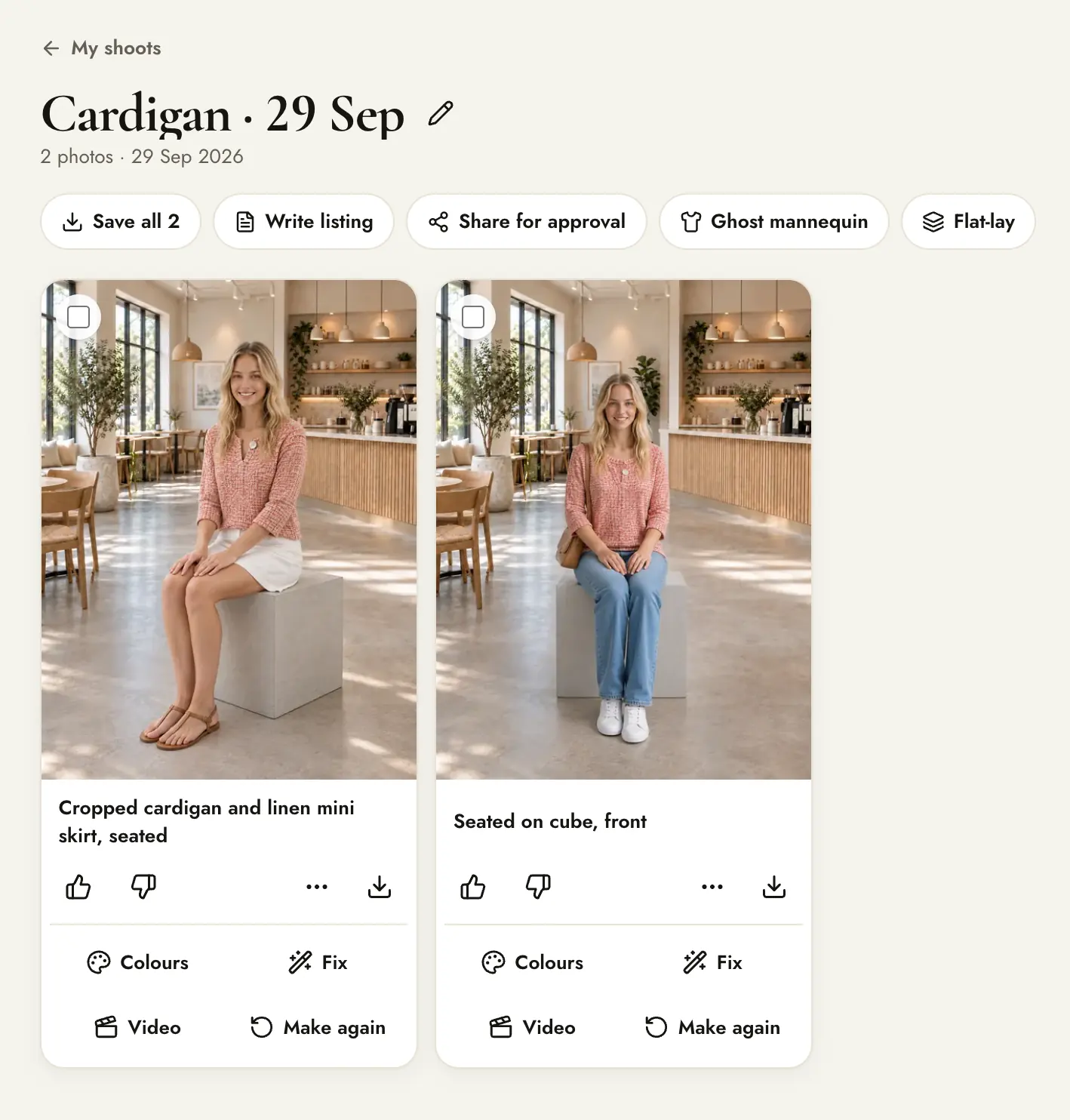
Here are the two photos this shoot made, from one product photo of a top on a hanger.
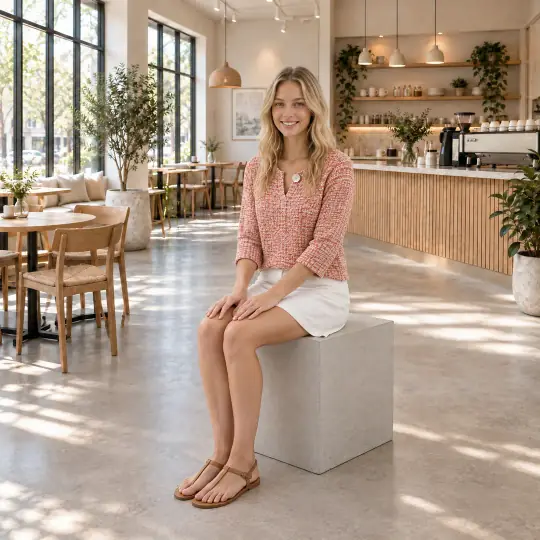
Photo 1, Chloe in Minimal Cafe
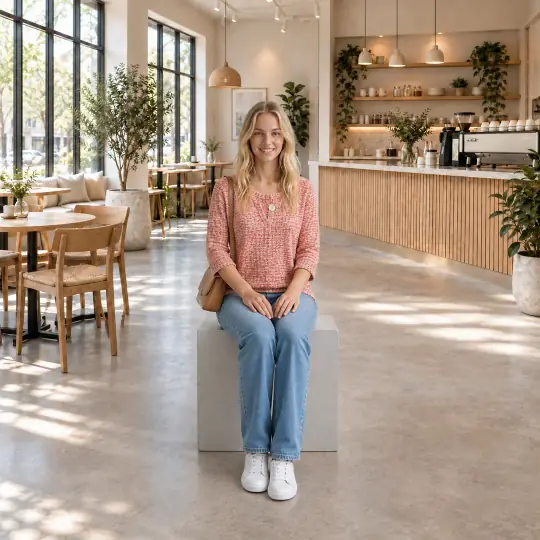
Photo 2, a second pose
What to do next
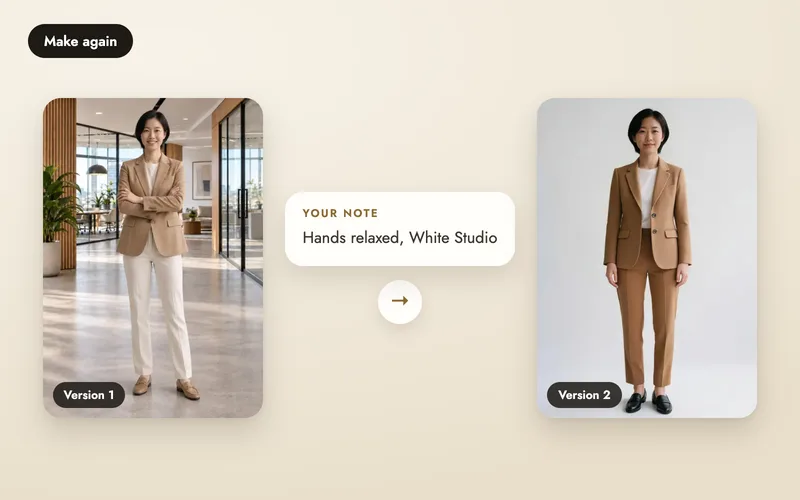
- Not quite right? Make it again with a note on what to change.
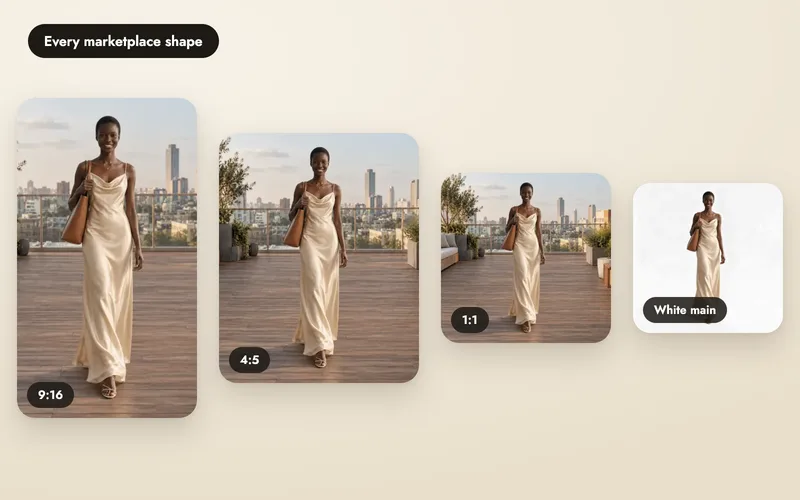
- Ready to list? Download in 1:1, 3:4, 4:5, 9:16 and more, or in the shape each of your marketplaces asks for, then write the listing text.
- Want another colour or a small fix? See change colours and fix photos. Want motion? See product videos.
- Need a client's sign-off? Share for approval.
- Want more from the same product? Other modes on Home: Ghost mannequin (5 credits per angle), Flat-lay (5 per style), Product video (5 credits per second, 10 in Full HD) and Try on me (5 credits). On a finished photo, Other colours and Fix something cost 5 credits per photo.
- Working with a team? Create a brand and invite them.