Open a photo in a shoot to see its tools: Make again, Fix something, Other colours, Make a video, compare, versions and save.
The screenshots in this guide show an earlier version of the app. The buttons now sit in the photo's tools, but they work the same way.
Compare with your product photo
Press the compare button (the split square). Drag the handle to slide between your product photo (Before) and the result (After). Check the print, colour, length and fit before you publish.
Make one image again
Press Make again under the image. Write what should change if you like (it is optional), keep the pose and scene as before or press Change, and adjust the frame and expression. Then press Make again · 5 credits.
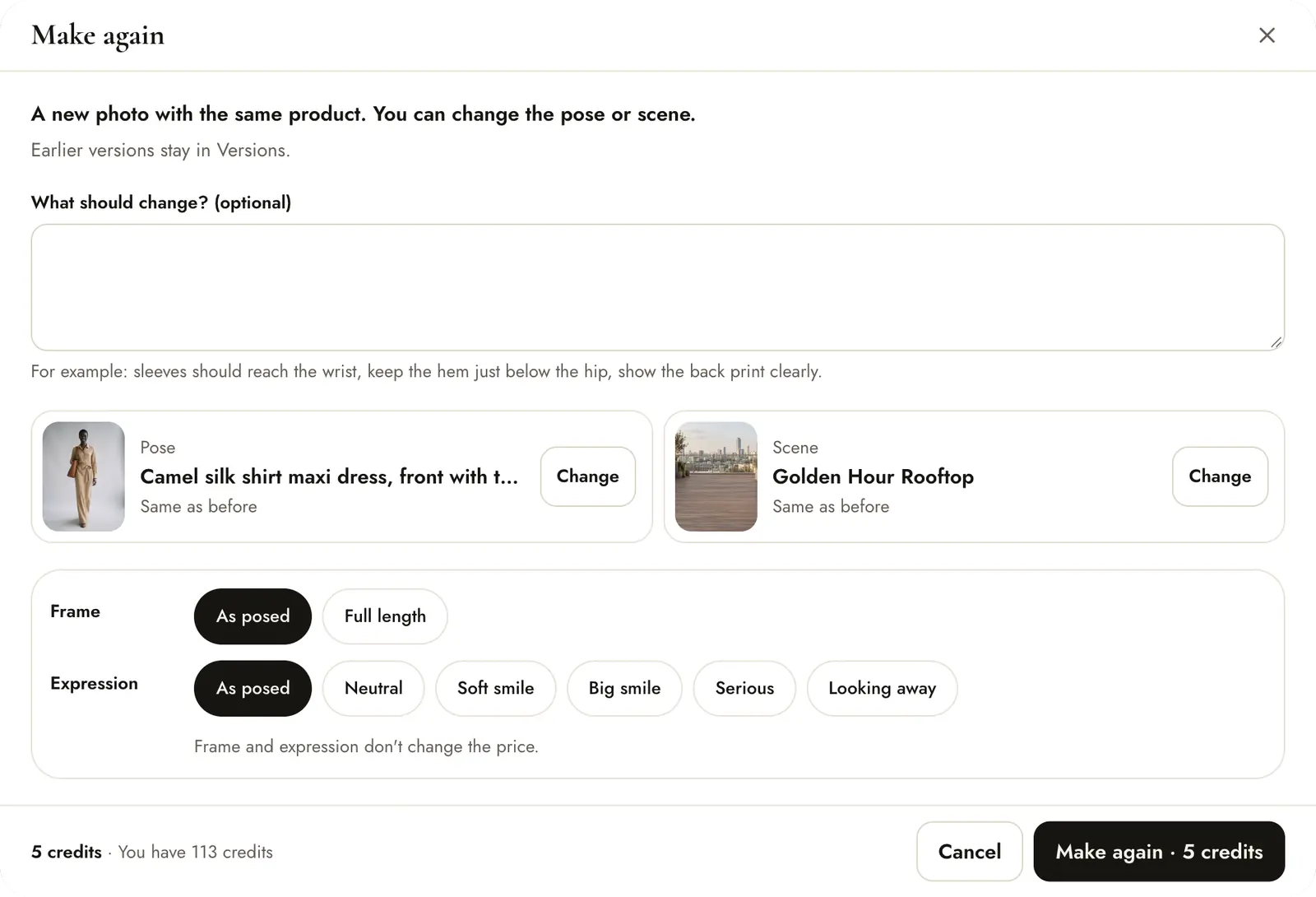
- What should change? Be specific, for example “sleeves should reach the wrist, keep the hem just below the hip”.
- Pose and Scene stay the same unless you press Change.
- The new photo starts from the version you are looking at, and earlier versions are kept.
5 credits per go, the same as a new image. If it fails, the credits come back.
Change the pose or scene
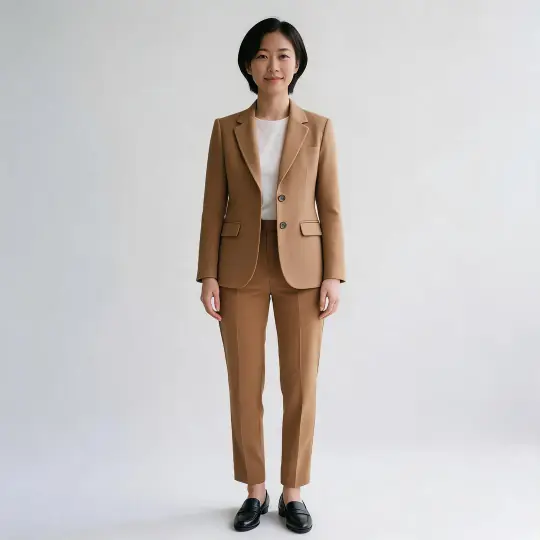
Press Change next to the pose or scene to open the picker. Pick a pose shows suggestions for your product; Describe lets you type one for no extra cost. That is how the result above got its new scene.
History and the preferred version
Open the photo's versions to see every one, including any that failed. Make preferred chooses the version that downloads, sharing and making it again later use, and it is marked as preferred.
Small changes without making it again
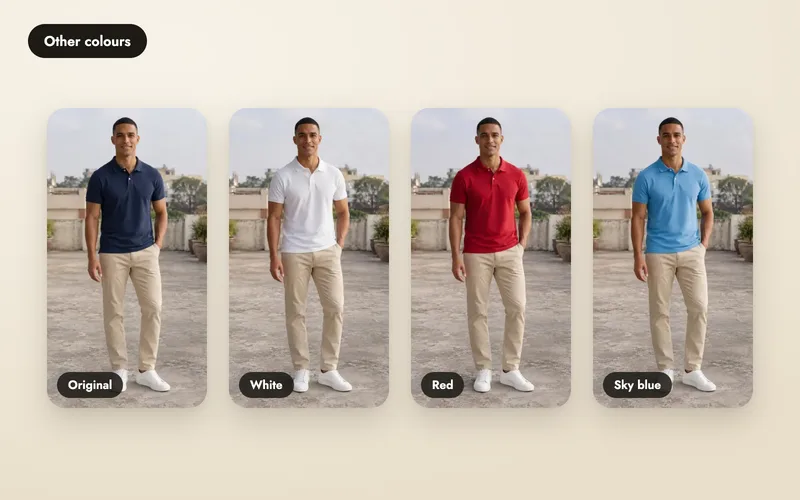
For a quick change to a finished image, Colours makes new images of the same shot in up to six colours, and Fix corrects one detail. Each costs 5 credits per photo, and the face, pose and scene stay as they are. See change colours and fix photos.